
VS Code companion
When you’re reading code in VS Code and want Claude to look at it, send it to a session in a few keys instead of copying paths and lines by hand. The Seshboard Companion extension for VS Code (also Cursor, Windsurf and VSCodium) sends what you’re looking at in the editor to a Seshboard session: the selected lines, the open file, files from the Explorer, problems, terminal output and changed files. It also works the other way: when a session in your workspace needs you, you can answer it from a VS Code notification.
It is a companion, not a chat. Claude Code’s own extension stays the chat inside VS Code; Seshboard is where you manage your sessions and talk to them.
Install it
Section titled “Install it”The extension’s id is eliostruyf.switchboard-companion. Install it from:
- the Visual Studio Marketplace, for VS Code;
- Open VSX, for Cursor, Windsurf and VSCodium.
It needs Seshboard on the same computer (a Mac or a Windows PC), and VS Code 1.95 or later. On Windows, use version 0.2.0 or later of the extension. If Seshboard isn’t running when you send something, the extension opens it first.
Open it
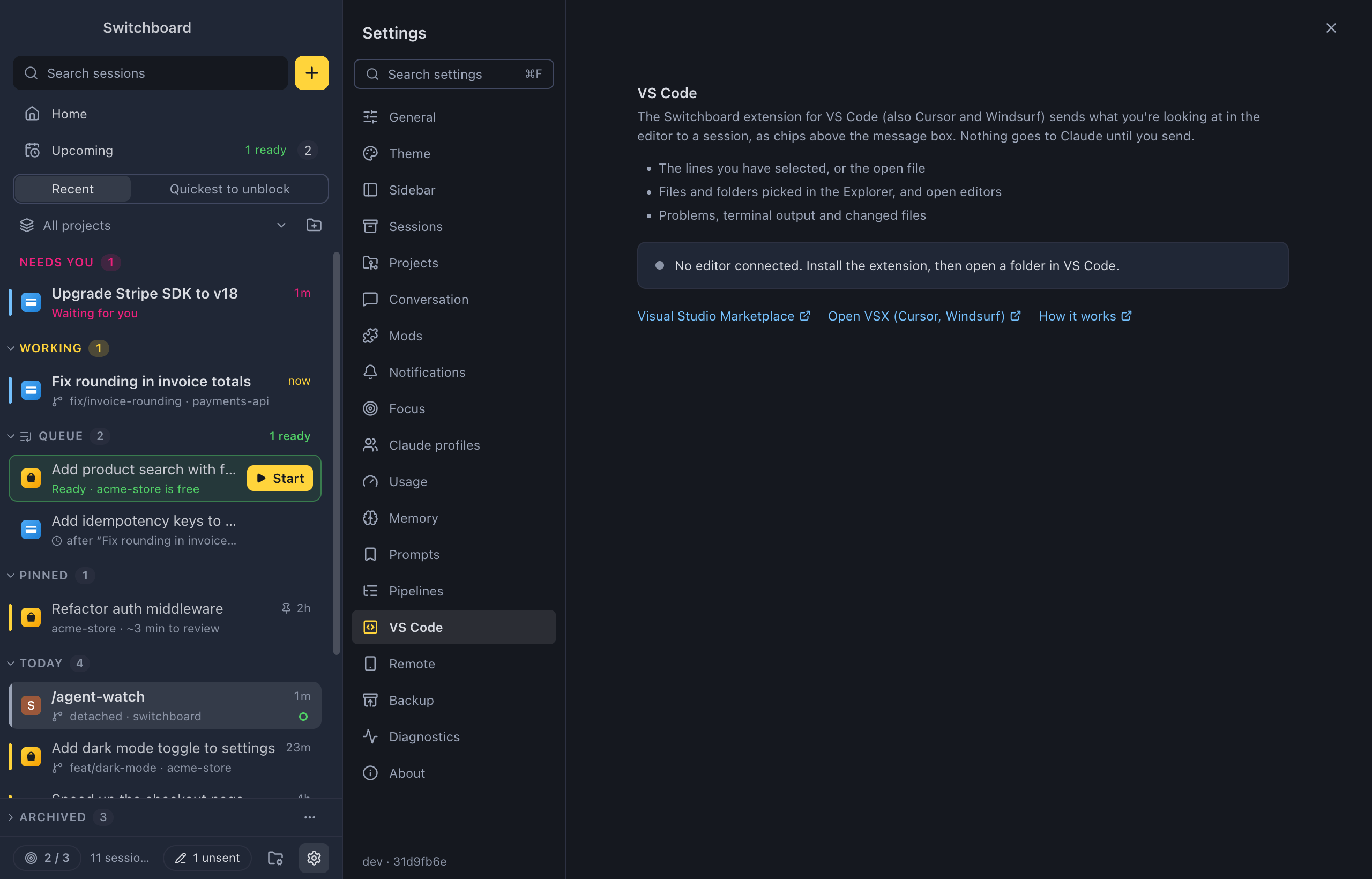
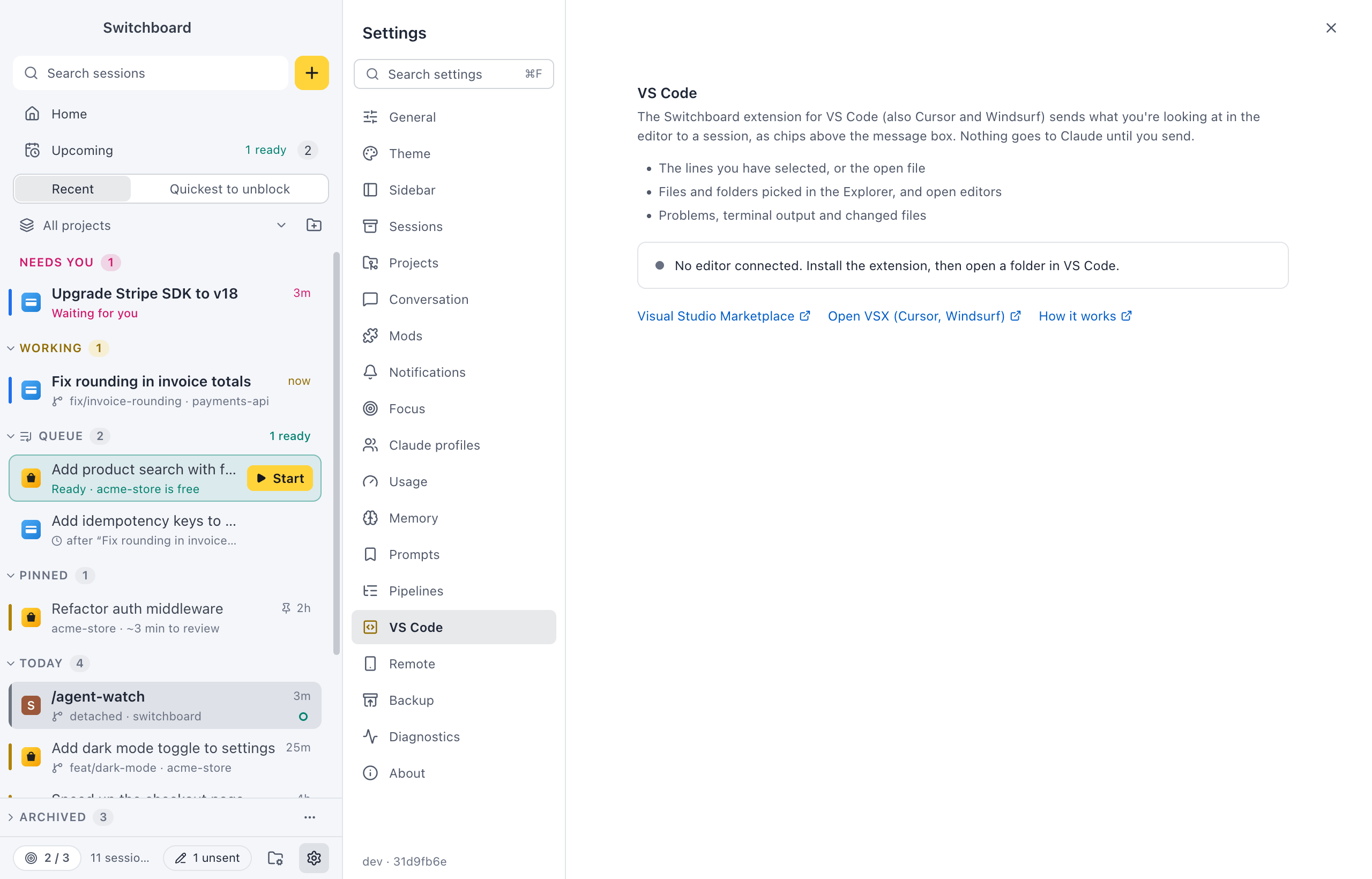
Section titled “Open it”- In Seshboard, Settings → VS Code (Command, CommaControl, Comma) shows what the extension sends, whether an editor is connected right now, and the links to install it. VS Code extension in the command palette opens it too.
- In VS Code, the commands are under Seshboard in the command palette, in the right-click menus of the editor, the Explorer, the terminal and Source Control, and in the quick fixes of an error.
Send context to a session
Section titled “Send context to a session”| From VS Code | Arrives in Seshboard as |
|---|---|
| Selected lines (Option, Shift, KAlt, Shift, K, or right-click in the editor) | auth.ts:12-40, a reference Claude reads itself |
| The active file, nothing selected | auth.ts |
| Files and folders in the Explorer, several at once | one chip each |
| Open editors, all or one tab group | one chip per file |
| Problems in a file or the whole workspace | the errors and warnings, as text |
| Fix in Seshboard in the quick fixes (Command, PeriodControl, Period) of an error or warning | the problem as text, and the lines it is on |
| Selected terminal output (Option, Shift, KAlt, Shift, K in the terminal, or right-click) | the output, as text |
| Files in Source Control | the changed files |
Everything arrives as chips above the message box in Seshboard. Files go as references (a path and its lines), so a large selection stays small. Two things go as text instead: a selection in a file with unsaved changes (Claude would read the old version on disk), and things that aren’t files, such as problems and terminal output.
Where it goes
Section titled “Where it goes”- To the session you have open in Seshboard, when its folder holds the file.
- Otherwise VS Code asks which session, from Seshboard’s sessions for this workspace, with what each one is doing.
- Or pick New session to open Seshboard’s New session on that folder, with the chips already in it.
On Windows, folders match without regard to case.
Seshboard comes to the front on the session when you add something. Turn off switchboard.bringToFront in VS Code’s settings to add context quietly.
Answer prompts in VS Code
Section titled “Answer prompts in VS Code”This needs Seshboard 0.0.14 or later. When a session in this workspace waits for you, a VS Code notification says which session and what it asks:
- A permission (“Claude wants to run
npm test”): Allow, Always allow (when Claude Code offers a rule), Deny… (with what to do instead, if you like) or Show in Seshboard. - A question: Answer… asks each question in a list (pick several where the question allows, or type your own answer), or Skip.
- A plan: Read the plan opens it in a Markdown preview, then Approve and accept edits, Approve, ask before edits or Keep planning… with what to change.
Your answer works as if you gave it in Seshboard, and the card there goes away. Closing a notification leaves the prompt waiting in Seshboard; the Seshboard: Answer Prompts command shows it again. If you already answered in Seshboard, the extension says so. See Permissions and questions for what each answer does.
Status bar
Section titled “Status bar”Seshboard: 1 needs you in VS Code’s status bar says a session in this workspace waits for a permission or an answer. Click it to go to that session in Seshboard. Otherwise it says how many sessions are working; click it for the list.
What stays private
Section titled “What stays private”The extension never sends the text of a file you keep from Claude:
- files matched by
files.excludeorsearch.excludein VS Code; - files git ignores;
- files Claude Code’s settings deny reading (
Read(…)rules inpermissions.deny).
For those, only the reference goes, and Claude Code applies its own rules when it reads the file. If that means your unsaved changes weren’t sent, the extension tells you.
The connection is a socket only your user account can open, with a token Seshboard writes to a file only you can read. On Windows it is a named pipe with a random name, and the token in your own app data folder is what lets an editor in. The extension only connects to the pipe Seshboard made, and ignores an app data folder that isn’t on this computer. Nothing leaves your computer.
Continue a session in VS Code
Section titled “Continue a session in VS Code”To move a session from Seshboard to Claude Code’s own VS Code extension, choose Continue in VS Code under ⋯ in the session header, or run Continue in VS Code in the command palette. Seshboard stops the session, opens its folder in VS Code and opens the session in Claude Code’s extension there. It is available when the session isn’t working.
Commands and settings in VS Code
Section titled “Commands and settings in VS Code”Commands, all under Seshboard in VS Code’s command palette: Add Selection to Seshboard, Add to Seshboard, Add Open Editors to Seshboard, Add Editors in This Group to Seshboard, Add Problems in This File to Seshboard, Add Problems in the Workspace to Seshboard, Fix in Seshboard, Add Terminal Selection to Seshboard, Add Changes to Seshboard, Answer Prompts, Show Sessions and Reconnect.
| Setting | What it does |
|---|---|
switchboard.bringToFront |
Bring Seshboard to the front on the session when you add something (on by default). |
switchboard.statusBar |
Show the status bar item (on by default). |
switchboard.prompts |
Show permissions, questions and plans from this workspace’s sessions as notifications you can answer (on by default). |
switchboard.quickFix |
Offer Fix in Seshboard in the quick fixes of errors and warnings (on by default). |
switchboard.editorTitleButton |
A button in the editor title bar that adds the selection or the file (off by default). |
switchboard.appDataFolder |
Where Seshboard keeps its data, for a build started with SESHBOARD_DATA_DIR. Leave it empty to find the installed app (~/Library/Application Support/Seshboard%APPDATA%\Seshboard). It can only be set in your user settings, not in a workspace. |
Settings
Section titled “Settings”Settings → VS Code in Seshboard shows whether an editor is connected right now. If it says no editor is connected, install the extension and open a folder in VS Code. How the connection works is in VS Code companion on GitHub.
Related
Section titled “Related”- Permissions and questionsApprove or deny what Claude wants to do, answer its questions and review its plans, right in the conversation.
- Working in a sessionChat with Claude, follow what it does, and go back in time when you need to.
- LinksOpen Seshboard from a seshboard:// link, to start a session with a prompt or jump to an existing one.
- Remote on your phoneFollow your sessions from your phone, answer Claude when it needs you, and send prompts, wherever you are.