
Built-in themes
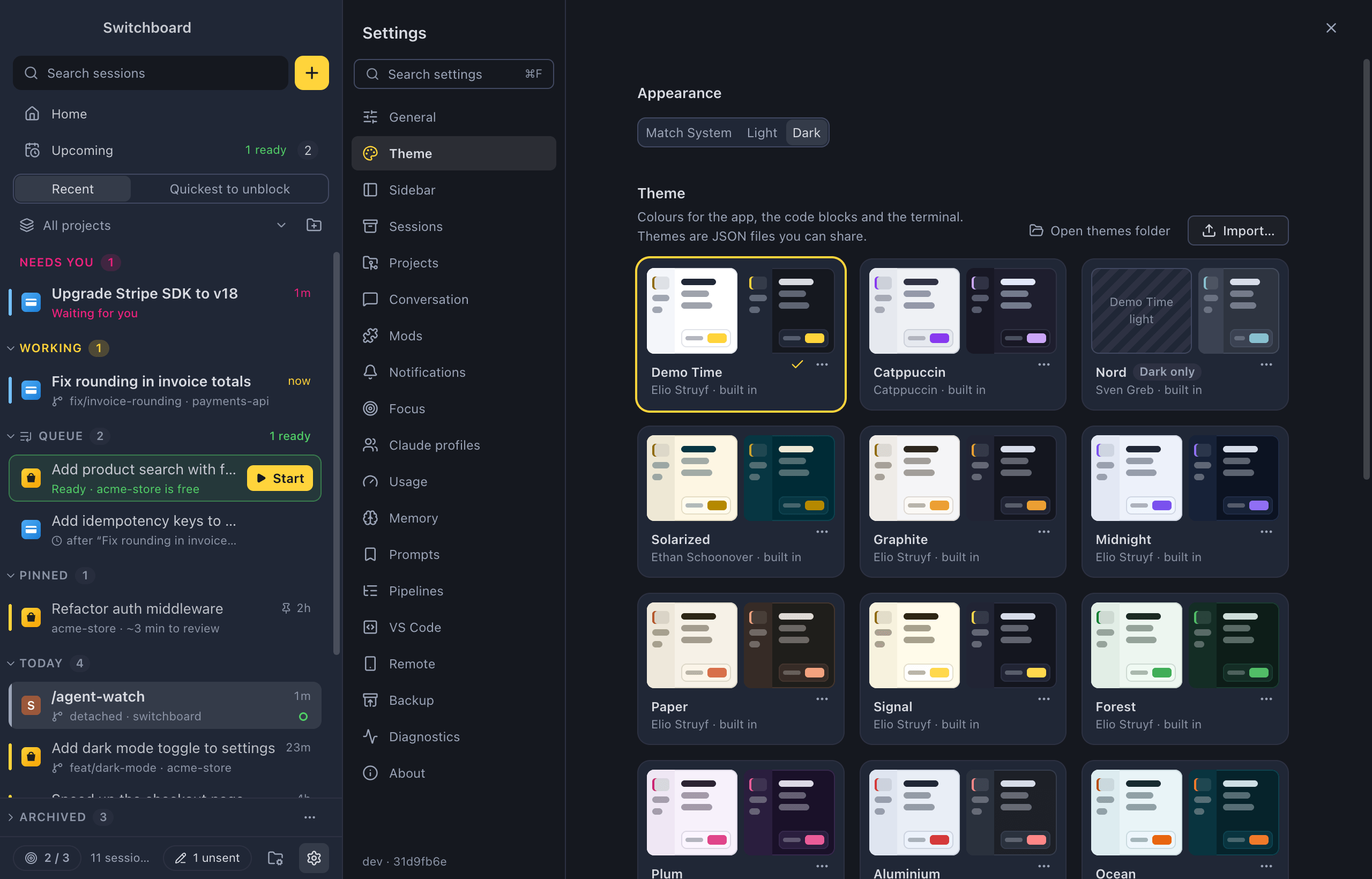
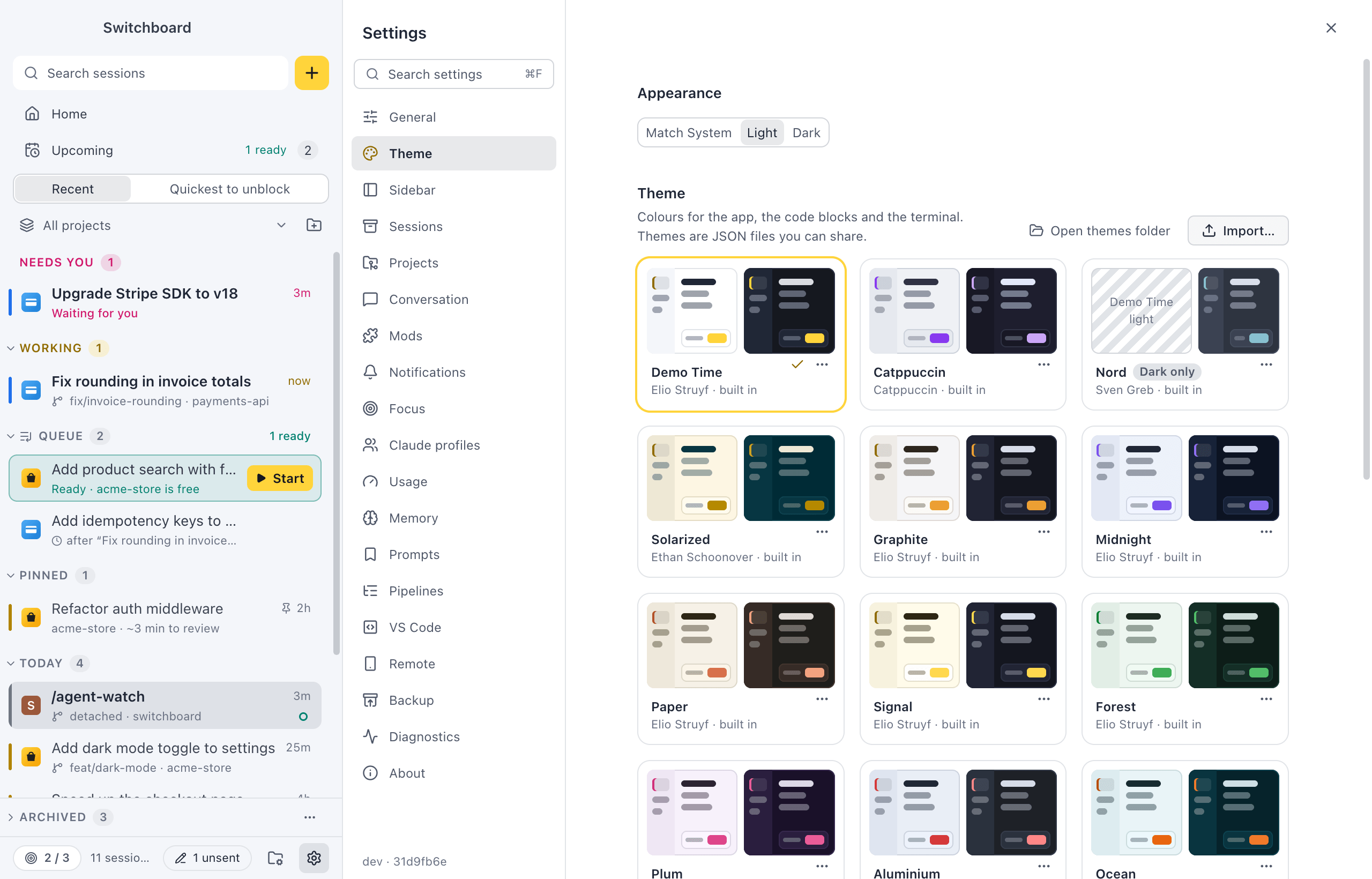
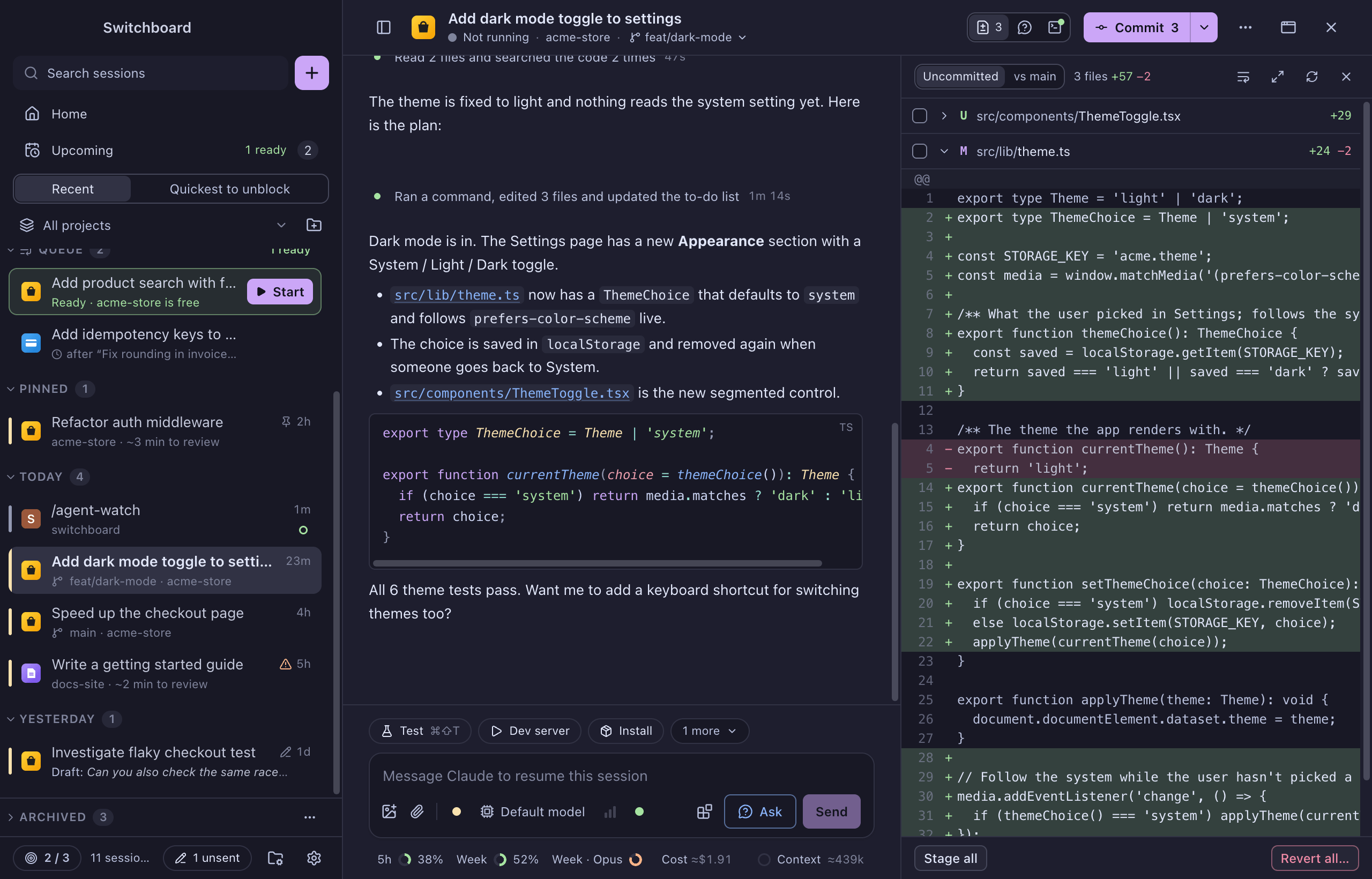
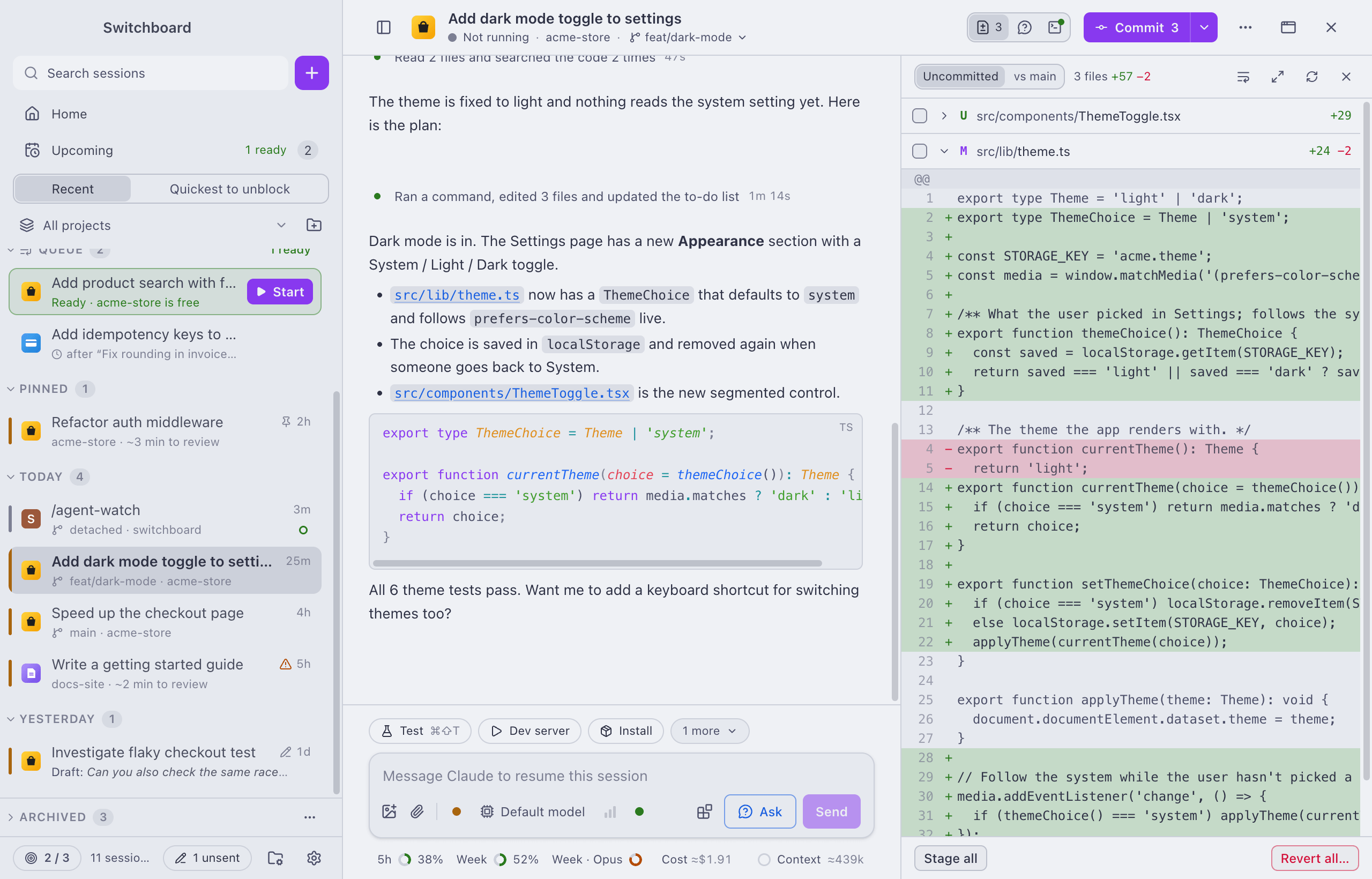
A theme sets the colours of Seshboard: the app, the code blocks and diffs, and the terminal, for light and dark mode. Seshboard comes with thirteen themes, and you can import your own.
Open it
Section titled “Open it”- Press Command, CommaControl, Comma (or click the gear at the bottom of the sidebar) and choose Theme.
- In the command palette (Command, K or Command, Shift, PControl, K or Control, Shift, P), run Theme: <name> to switch to a theme, or Appearance: Match System, Appearance: Light or Appearance: Dark to change the mode. The palette only lists the choices you aren’t using now.
Choose light or dark
Section titled “Choose light or dark”Appearance at the top of Settings → Theme has three choices:
- Match System (the default): follows macOSWindows, so Seshboard turns dark when your system does.
- Light
- Dark
The terminal panel is always dark, in light mode too.
Pick a theme
Section titled “Pick a theme”Click a theme card to use it. It applies at once, and a message in the corner says “Switched to <name>” with Undo, which takes you back to the theme you had.
Each card shows the theme in light and dark mode, its name, and who made it, with built in or imported. The theme in use has a ring in its own accent colour and a check mark.
| Theme | Light mode | Dark mode |
|---|---|---|
| Demo Time (the default) | Demo Time Light | Demo Time Dark |
| Catppuccin | Latte | Mocha |
| Nord | uses Demo Time | Nord |
| Solarized | Solarized Light | Solarized Dark |
Themes that match the app icons
Section titled “Themes that match the app icons”Nine themes match the colourways of the app icon, each in light and dark: Graphite, Midnight, Paper, Signal, Forest, Plum, Aluminium, Ocean and Neon. Pick the icon and its theme together, or mix them as you like.
If you used the Claude or The unnamed theme, which are no longer built in, Seshboard switches to Demo Time.
More for a theme
Section titled “More for a theme”Each card has a ⋯ button (or right-click the card, or press Shift, F10Shift, F10):
- Export… saves the theme as a
.jsonfile. Exporting Demo Time gives you every colour, a good start for a theme of your own. - Duplicate adds an editable copy to your themes.
- Show file and Remove are only there for themes you imported. Built-in themes can’t be removed.
See Custom themes for importing, exporting and editing theme files.
Settings
Section titled “Settings”Everything on this page is in Settings → Theme. Your theme and appearance are part of the preferences you can back up.
A phone paired with Remote uses your theme too.
Related
Section titled “Related”- Custom themesImport, export, duplicate and edit theme files, and write a theme of your own.
- Code and terminal coloursHow a theme colours code blocks, diffs and the terminal panel.
- Back up and move your settingsExport your Seshboard setup to a file and import it on another computer or after a reset.
- Notifications and soundsTurn notifications and sounds on or off, each on its own, and pick a sound for each moment.