
Preview files
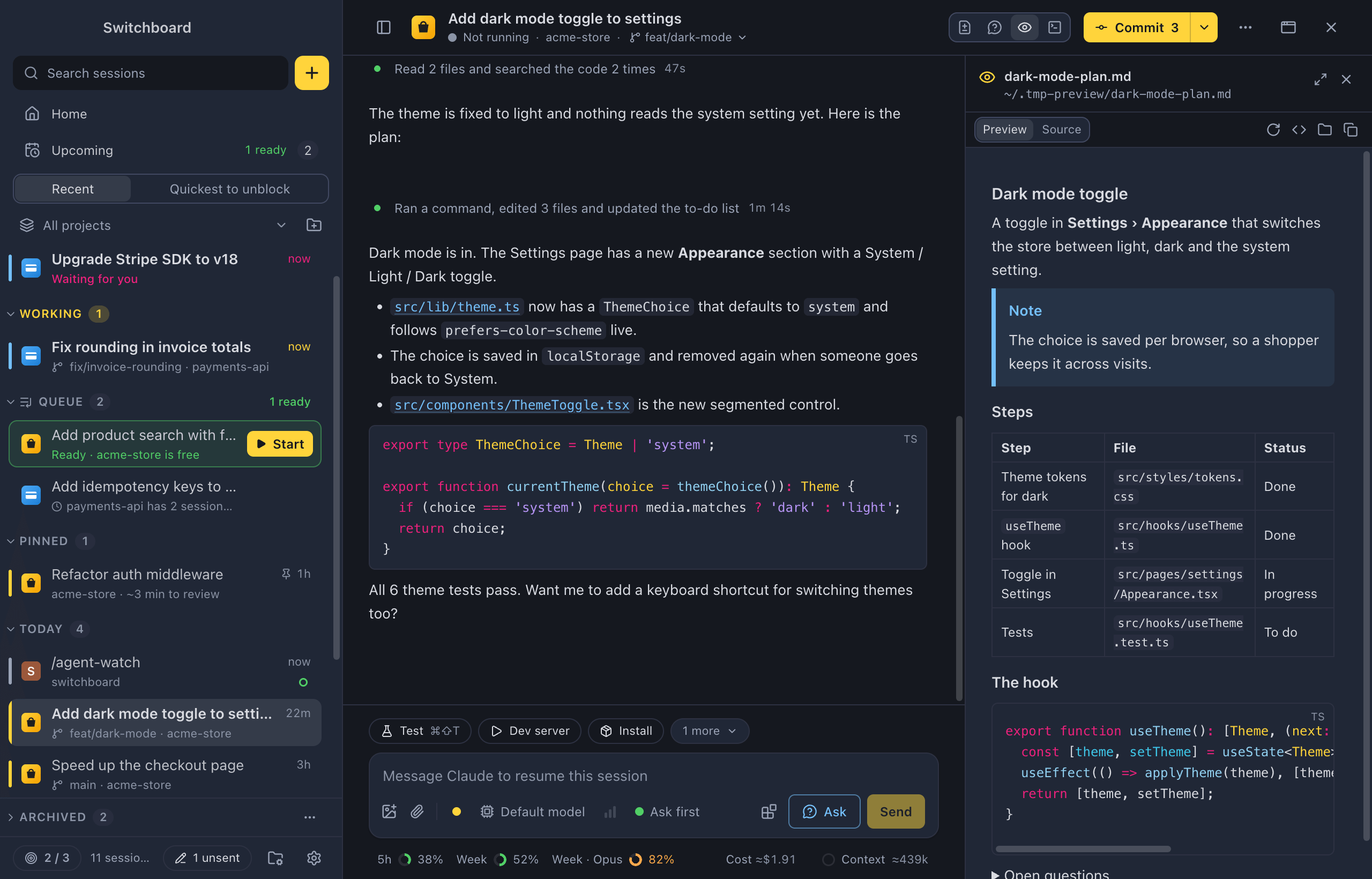
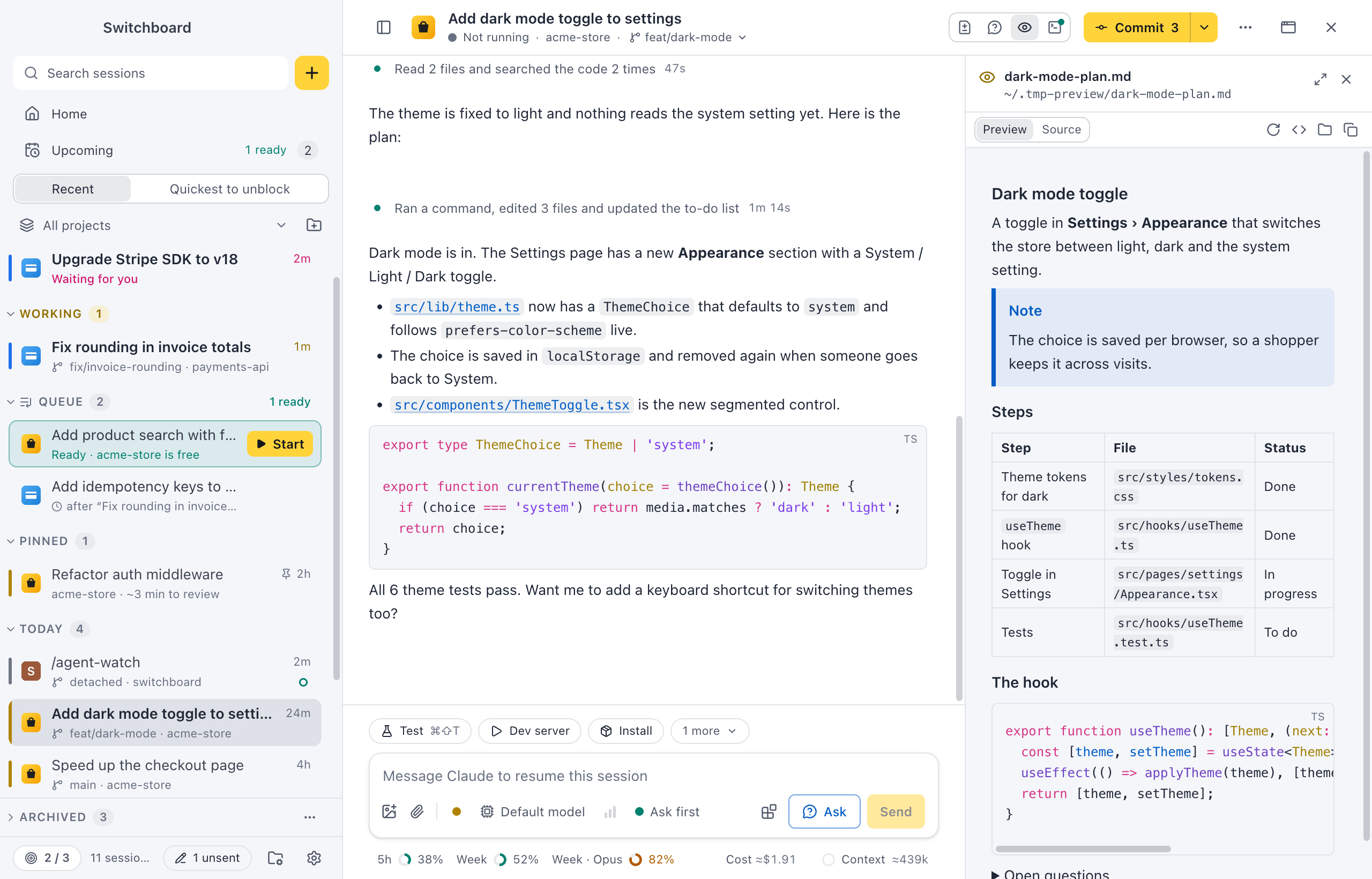
Claude often writes a plan, a README, a small web page or a piece of code. Click the file in its reply and it opens in the side panel, next to the conversation, rendered the way you would read it. No editor, no browser.
What opens
Section titled “What opens”Markdown files (.md and .markdown), HTML files (.html and .htm) and code and text files preview in Seshboard. Code and text files are the usual ones: TypeScript, JavaScript, JSON, YAML, TOML, CSS, shell, Python, Go, Rust, SQL, XML, CSV, .txt and .log, among others. Any other file shows in FinderFile Explorer, as before.
The window has a Preview and a Source switch. Source shows the file’s text with syntax colours. Markdown opens on Preview. HTML opens on Source, because a page can fail to render and its text always shows. Code and text files have no preview, so they are always their source. Seshboard remembers your choice for each kind of file in that window.
Long lines wrap by default. Wrap lines in the header turns that off, so a line scrolls sideways instead. The choice holds for every file in that window.
Side panel or dialog
Section titled “Side panel or dialog”A file opens in the session’s side panel, as a tab next to Changes and Ask. Open in a dialog (the arrows in the header) moves it over the window, and files open there from then on. Dock to the side in the dialog brings it back. A file opened outside a session always opens in the dialog.
A link to a line or a range, such as src/app.ts:10, src/app.ts:10-14 or #L10-L14, opens the file on its source with those lines marked and scrolled into view.
Markdown
Section titled “Markdown”A preview reads like Claude’s replies, with a few things more:
- Raw HTML in the file works for the usual tags, such as
<details>,<summary>, tables and<img>. Scripts, styles, frames and event handlers are left out. - GitHub’s alerts show as coloured blocks with a title:
> [!NOTE],> [!TIP],> [!IMPORTANT],> [!WARNING]and> [!CAUTION]. - Images next to the file show, with a path that is relative to the file (
./diagram.png) or absolute. Pictures from the web don’t load; their description shows instead. - A link to a web page opens in your browser. A link to another file on your computer is a file link: a Markdown file opens in the same window, and any other file does what Clicking a file link says.
Mermaid diagrams and maths are not drawn yet.
Choose Preview to see an HTML page. It shows in a frame, with its own styles on a plain background, as a browser would show it. For your safety the page cannot run scripts or load anything from the network. Pictures next to the file, such as <img src="logo.png">, are included, up to 10 MB each. Links inside the page don’t go anywhere.
Big files
Section titled “Big files”A file over 2 MB isn’t shown. The window says how big it is and offers Open in editor and Show in FinderFile Explorer.
Reload
Section titled “Reload”Claude may change the file while you read it. Reload in the header reads it again, and so does coming back to Seshboard from another window.
The header also has Open in editor, Show in FinderFile Explorer and Copy path. Close preview (the X) closes the panel, and Escape closes the dialog.
Open it
Section titled “Open it”- Click a Markdown, HTML or code file in a reply, or the Preview chip beside a tool run that wrote it. Shift, clickShift, click opens it in your editor instead.
- Right-click the file link (or press Shift, F10Shift, F10) and choose Open in Seshboard.
- In the command palette (Command, KControl, K), choose Preview last written file to open the last previewable file Claude wrote or edited in the open session.
Settings
Section titled “Settings”Clicking a file link in Settings, Conversation sets what a click does: Open in Seshboard (the default), Show in FinderFile Explorer or Open in editor. If you had chosen the editor before, it stays that way.
Sessions on another computer don’t have file links, so there is nothing to preview there.